

Wingbar for Mac

The icons your notch hides, back in view.

When the menu bar fills up, macOS quietly stops drawing the icons that land under the notch. Wingbar shows them in the free space on the other side, and they work like the real thing.

v0.2.0 · 1.3 MB macOS 14+ free · open source

Finder FileEditViewGoWindowHelp
Demo icons. Click one in the Left Wing.
The problem

macOS doesn't move it. It just stops drawing it.

Status icons fill the menu bar from the right. When the next one would land under the camera housing, there's no warning and no API that says it's hidden. You just have fewer icons than you thought.

Running 0 Drawn 0 Hidden by the notch 0 statusItem.isVisible // true, for every one
The Left Wing

A second wing, left of the notch.

The left side of the menu bar usually has empty space between the app's last menu and the notch. Wingbar draws the hidden icons there, as live pictures of the real ones, at their real size, packed against the notch like a continuation of the bar.

Finder FileEditViewGoWindowHelp
Front app
Xcode's long menu bar leaves less room than Finder's, so the Left Wing re-fits and the rest go behind ‹.

Every icon macOS isn't drawing

Icons under the notch, icons macOS couldn't fit at all, and icons behind Wingbar's line when the hidden section is closed.

Matches your menu bar

They're pictures of the real icons, so they follow its light or dark look. Icons Wingbar can't picture show as monochrome glyphs made from the app icon.

Room for the rest

When the Left Wing is full, the rest go behind a ‹ button that opens a glass bar, or a list with names, under the notch.

The left half of a real MacBook menu bar: the app's menus, then a row of status icons sitting just left of the black notch
Real screenshot The Left Wing on a MacBook: icons macOS was hiding under the notch, drawn after the app's menus.
Opening hidden icons

They're pictures. They still work.

Click an icon in the Left Wing and Wingbar picks the best way to open it for that app, and remembers what works.

Finder FileEditViewGoWindowHelp

The move engine never acts while the menu bar is hidden for a full-screen app or while you're using the mouse, and it can be turned off.

Arrange

Both sides, by drag and drop.

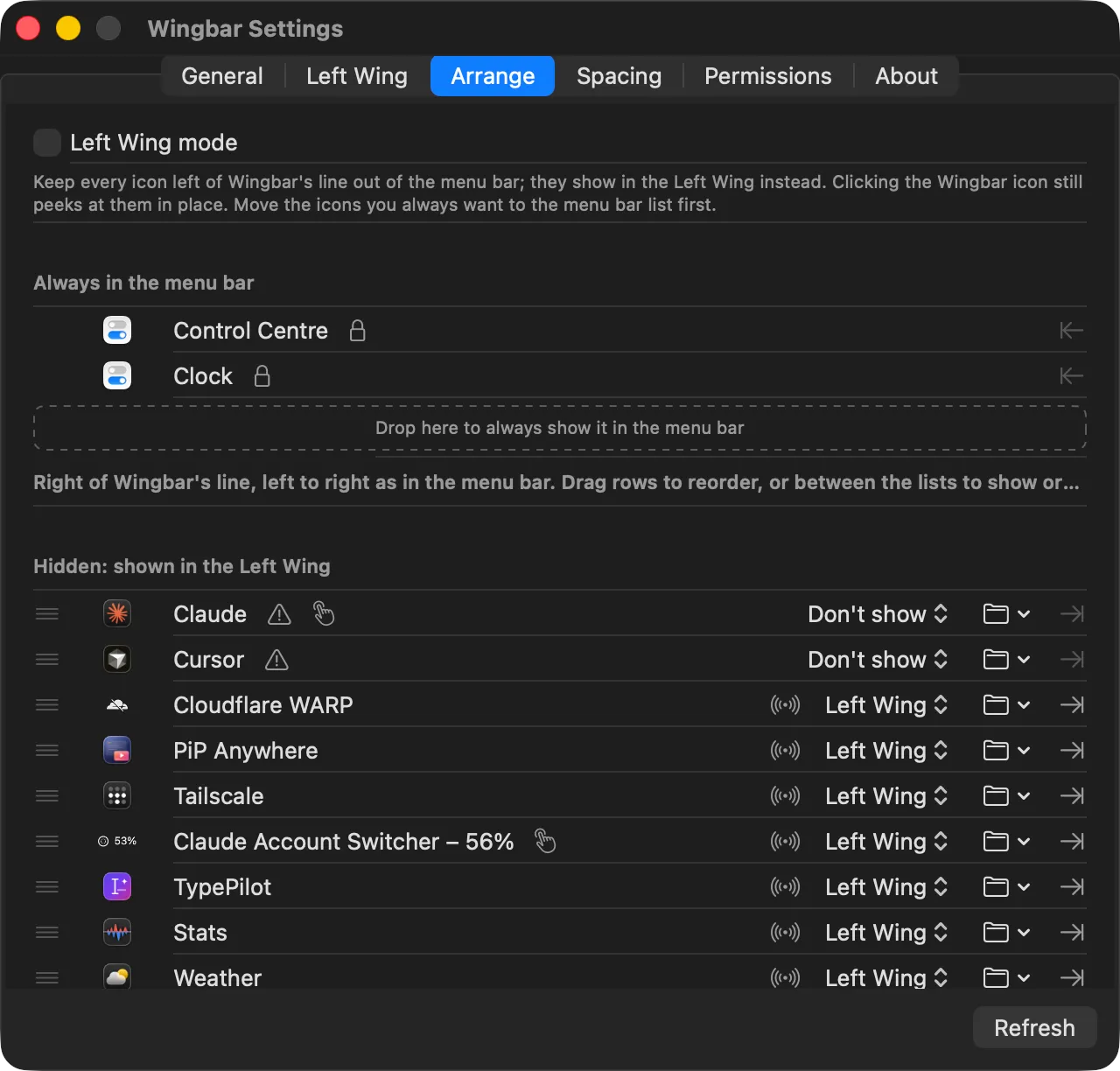
Two lists mirror the real menu bar. Drag a row onto another to put it there, or between the lists to show or hide it. Wingbar moves the real icons; Clock and Control Centre stay where macOS keeps them.

Try it: drag a row, or use the arrows.

Always in the menu bar

  • Control Centre🔒
  • 9:41Clock🔒
  • Weather
  • Stats
  • VPN

Hidden: shown in the Left Wing

  • Timer
  • Music
  • Cloud Sync
  • Mesh
  • Assistant

Demo icons

Customize

Tuned to your menu bar.

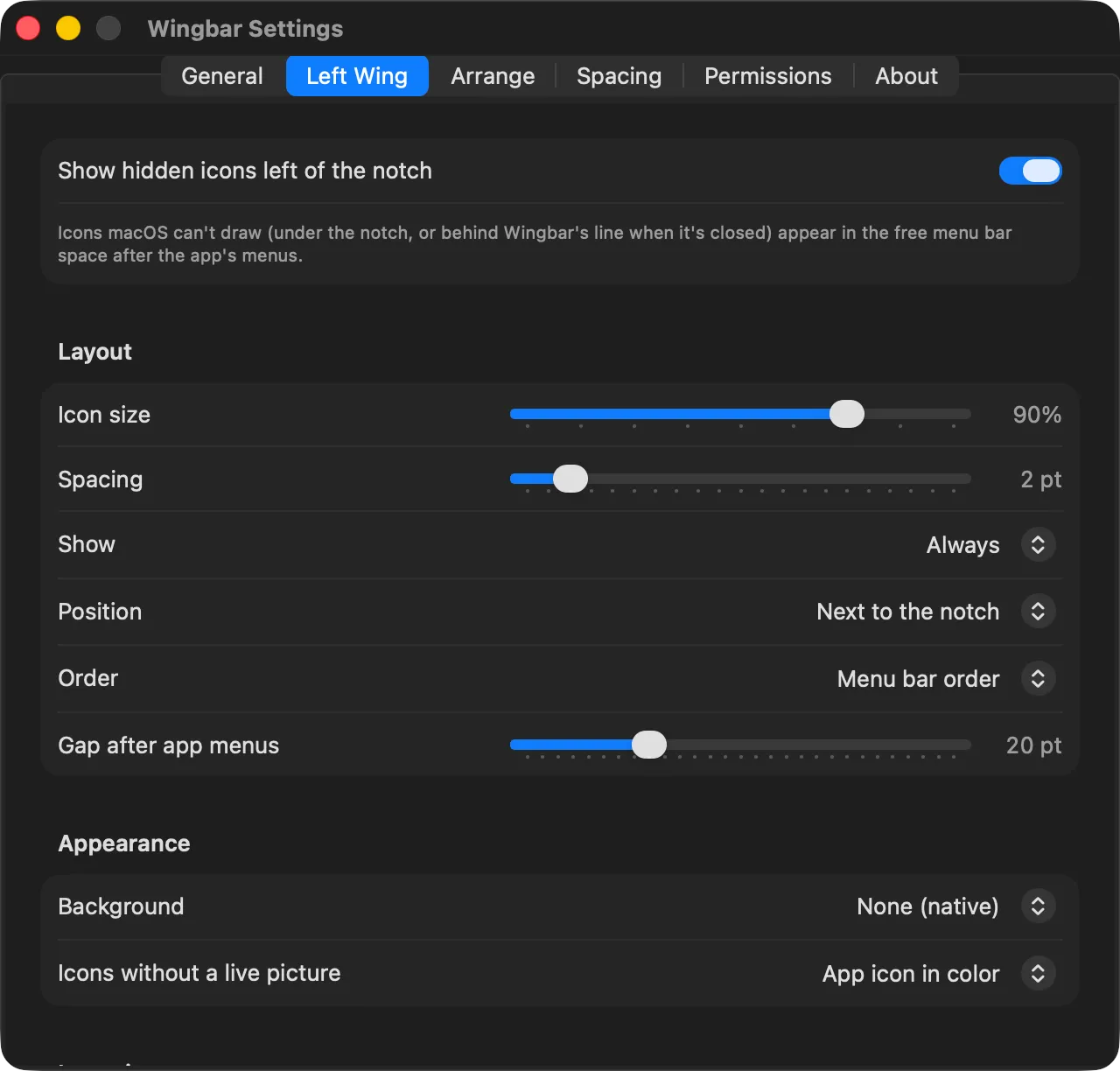
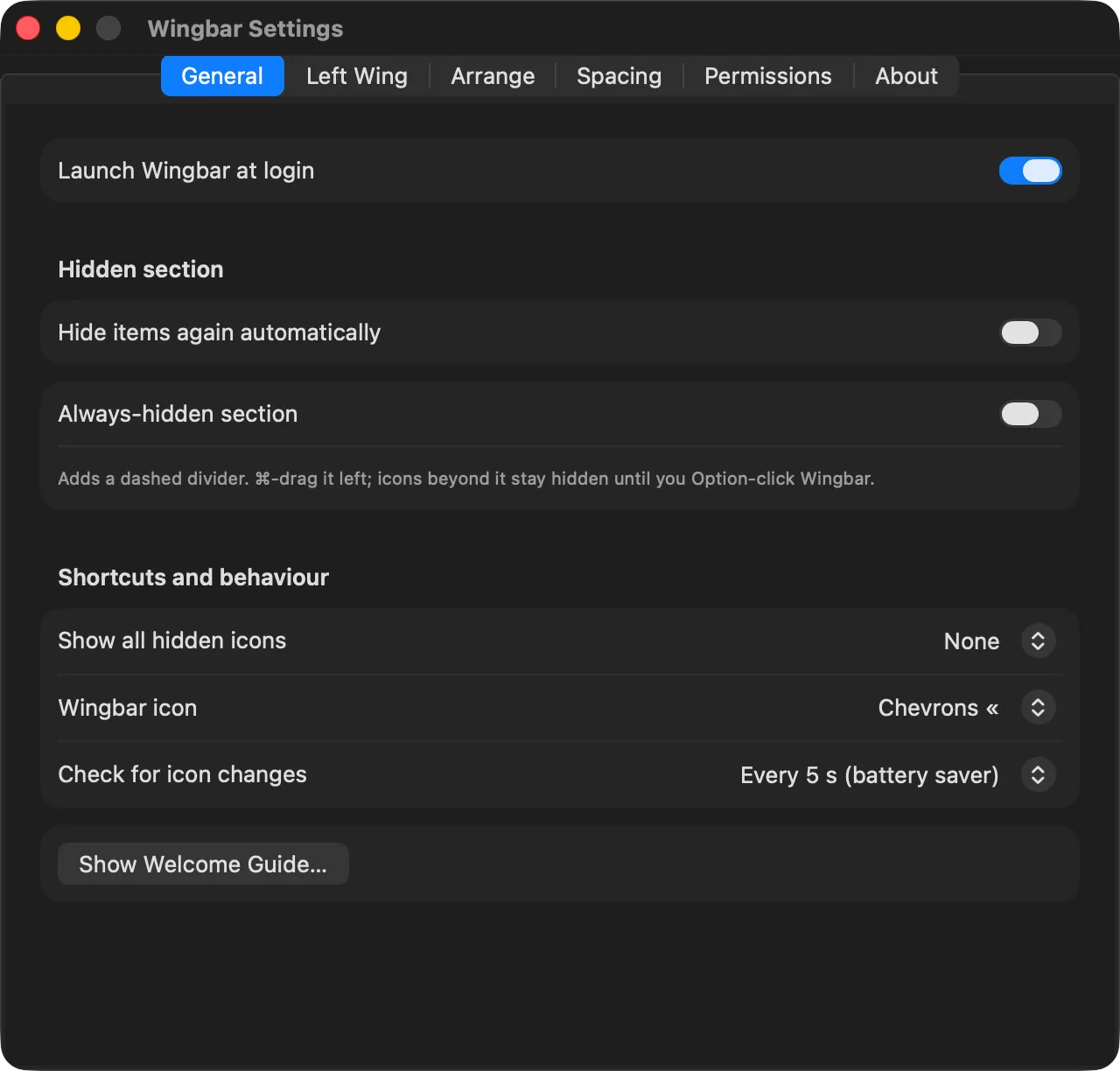
Wingbar Settings, Left Wing tab: icon size, spacing, show, position, order, gap after app menus, background and the style for icons without a live picture Wingbar Settings, General tab: launch at login, hidden section auto-hide, always-hidden section, shortcut, Wingbar icon style and scan frequency Wingbar Settings, Arrange tab: a list 'Always in the menu bar' with Control Centre and Clock locked, a drop zone, and a list 'Hidden: shown in the Left Wing' with drag handles and per-icon placement menus
  • Icon size from 60 to 100%, spacing, and position: next to the notch or after the app's menus
  • Order by menu bar or alphabetically, and the gap after the app's menus
  • Background: none, a subtle pill or a separator line
  • Shown always, or only while the pointer is on the menu bar

Also

Icon pictures: Capture once (the default: each picture is saved and reused), Live, or Off.

Overflow: an icon bar or a list with names, with optional hover-over-the-notch to show everything.

Spacing: system-wide icon spacing with Apply Now, which relaunches menu bar apps after asking instead of waiting for the next login.

Private and light

Stays on your Mac. Stays out of the way.

No network requests

Wingbar never goes online. Nothing leaves your Mac.

Accessibility: required

To see which app owns each icon, read and press their menus, and move icons.

Screen Recording: optional

Only to picture icons exactly as they look. With Capture once it's used just for icons Wingbar hasn't seen before, and you can turn it off.

Pictures stay on disk

Cropped to the single icon and kept only in ~/Library/Application Support/Wingbar/Icons. Delete Saved Pictures removes them.

Native and event-driven

Swift and AppKit, no web views. It re-scans when something changes rather than all the time.

Steps aside

The Left Wing hides over full-screen apps and when the menu bar auto-hides. The move engine never acts then, or while you're using the mouse.

Install

Three steps. No account.

Wingbar is a Mac app. Open this page on your Mac to download it.

Wingbar for Mac

v0.2.0 · 1.3 MB · macOS 14 or later · MacBooks with a notch · 2 downloads

Download
  1. 01

    Unzip and move it

    Download Wingbar-0.2.0-macOS.zip, unzip it, and move Wingbar to Applications.

  2. 02

    Open Anyway

    It isn't notarized yet, so macOS blocks the first launch. Open System Settings → Privacy & Security and click Open Anyway.

  3. 03

    Grant Accessibility

    Required. Screen Recording is optional; it lets the Left Wing show each icon exactly as it looks.

Build it from source macOS 14+ · Xcode 16+
git clone https://github.com/Naman503/wingbar.git
cd wingbar/app
swift test
scripts/bundle.sh release
open build/Wingbar.app

Set SIGN_IDENTITY when bundling to keep the signature stable, so macOS keeps the permissions across rebuilds. Instructions on GitHub.

Questions

Good to know.

Why does macOS block it the first time?

Wingbar isn't notarized yet. After the first try, open System Settings → Privacy & Security and click Open Anyway next to Wingbar. You can also build it from source.

Why does it need Accessibility?

To see which app owns each icon, read and press their menus, and move icons. Screen Recording is optional: it only lets the Left Wing show each icon exactly as it looks.

Can it resize other apps' icons?

No. Each app draws its own icon, so the real ones can't be resized. Spacing is a system-wide setting, which Wingbar can change and apply for you.

What about icons macOS couldn't fit at all?

They get no window, just an off-screen placeholder, so they can't be pictured or moved. They show as a glyph made from the app icon and open through their menu when they have one.

Can I reorder icons that are both under the notch?

Drops land reliably only at visible spots, so reordering two icons that are both under the notch only changes the Left Wing's order.

Why isn't it on the Mac App Store?

Wingbar uses Accessibility and posts events to other apps, which the Mac App Store doesn't allow.

Why does it ask for permissions again after an update?

Each build has a new signature, so macOS may ask for Accessibility and Screen Recording again.

Is it free?

Yes. Open source under the MIT licence, with no accounts and no network access at all.

Changelog
v0.2.0 · 26 Oct 2026

Wingbar 0.2.0

  • Left Wing: icons macOS hides under the notch (or can't fit at all, or that sit behind Wingbar's closed line) appear in the free menu bar space left of the notch, as pictures of the real icons. It re-fits as the front app's menus change and hides over full-screen apps.
  • Opening hidden icons: a native copy of the icon's menu under its Left Wing icon (read and pressed through Accessibility); an Accessibility press for popover apps; and a move engine that ⌘-drags icons which only open from their own icon into view, clicks them, and puts them back in their exact slot.
  • Arrange tab: drag-and-drop lists of both sides that mirror the real menu bar; drop between them to show or hide an icon.
  • Customization: icon size, spacing, position, order, gap after the app's menus, background, fallback icon style, shown always or on hover, overflow bar or list, optional notch hover, groups, per-icon rules, global shortcut, Wingbar icon style, scan frequency, and Left Wing mode.

Release notes →
All releases on GitHub →
Made by one developer

The person behind Wingbar

Naman Pathak Naman Pathak, as a cartoon at his desk Naman Pathak

Naman Pathak

Software engineer · mobile & full stack

Bengaluru · open to new work

My MacBook's notch was quietly hiding half my menu bar icons, and I only noticed when I went looking for one. The free space on the other side of the notch was just sitting there, so I built Wingbar to put them back in view.

Got an idea?

Missing something in Wingbar, or found a bug? Tell me what you'd change.

Straight to my inbox. I usually reply within two days.

Rather see my work first? Portfolio & résumé →

Give your icons a second wing.

Free, open source, and no network. For MacBooks with a notch on macOS 14 or later.